

Your media library. On your Tesla.
Video playback in Drive. Entertainment for passengers on the go.
Tested on AMD-equipped Tesla vehicles.
Connect Emby, Jellyfin or Plex to watch your own movies and shows in the Tesla browser. Scan with your phone to set up, and let passengers enjoy the journey.
For passengers only while moving. Drivers must not watch or operate the app while driving.
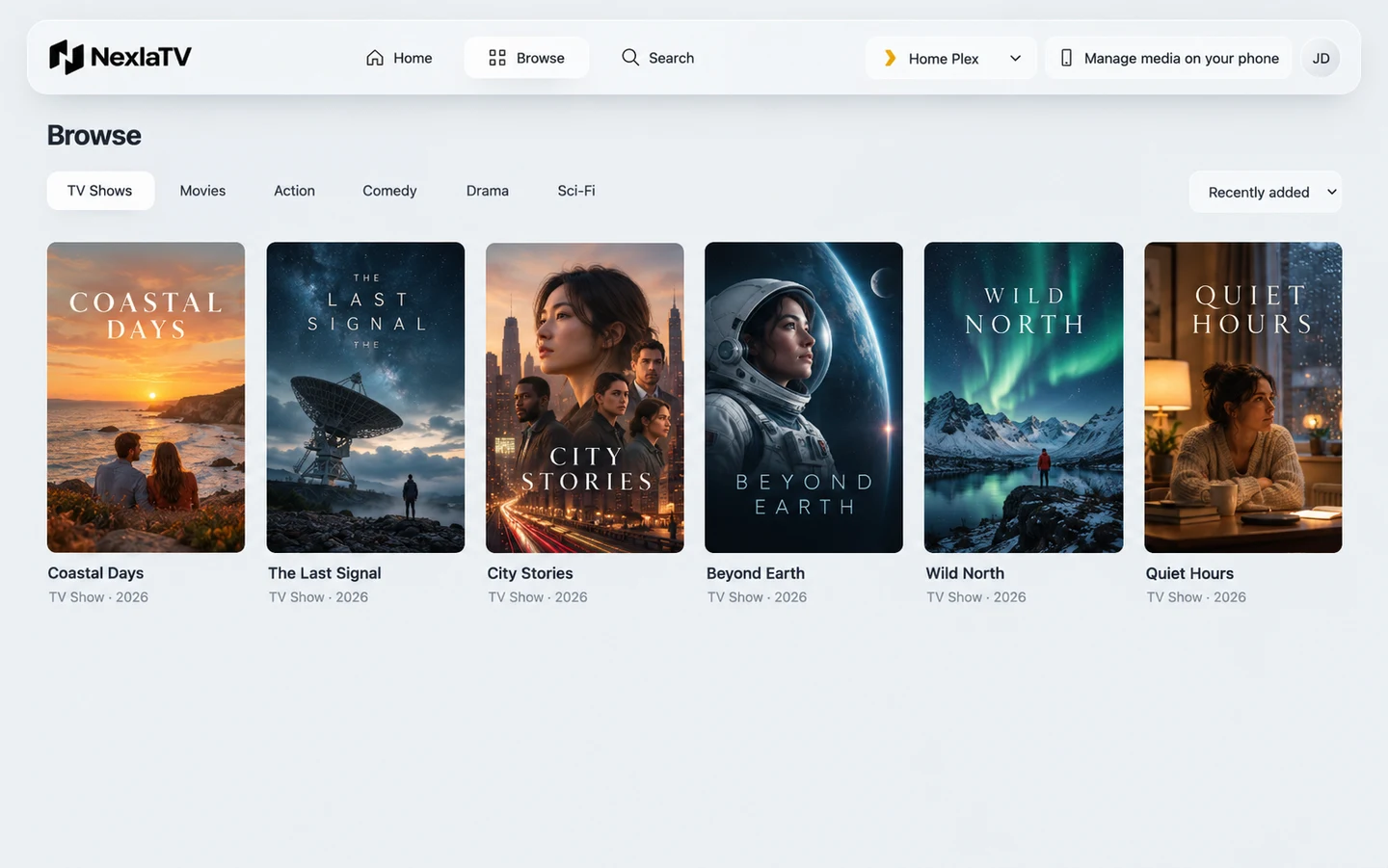
Your server. Your collection.
NexlaTV connects to your media. It does not supply films, shows or server accounts.
 Emby
 Jellyfin
 Plex
Three steps to your library
-
Open NexlaTV
Open NexlaTV in your browser and sign in.
-
Connect your server
Add Emby or Jellyfin with your server account, or authorize Plex and select a server.
-
Choose something to watch
Select a library, open a title and choose an episode or available version before playing.
Two screens. Clear roles.
Easy setup on your phone.
Browse and play in your Tesla.
Scan the screen’s QR code to open the same media source configuration on your phone. Browse, search and add sources; the online screen updates automatically.
Your phone manages sources and previews resources. Playback stays on the desktop or vehicle screen.
Follow the phone setup guide →Before you watch
Does NexlaTV include movies or shows?
No. You connect your own Emby, Jellyfin or Plex server using an account with access to its media.
Can I play video in a Tesla while in Drive?
Yes. Use and video playback in Drive have been tested on AMD-equipped Tesla vehicles. This does not guarantee every model or software version. Viewing while moving is for passengers only; drivers must not watch or operate the app.
Does it work on AMD and Intel Atom vehicles?
AMD-equipped Tesla vehicles have been tested successfully. Intel Atom-based Tesla systems are not currently supported for reliable use. Browser crashes can interrupt or prevent use. You may try accessing NexlaTV, but we do not recommend relying on it for regular use. Network access, media formats and vehicle software can also affect playback.
Why can I browse a library but not play a video?
The viewing device must be able to reach the media URL, and its browser must support the format. Secure pages can block HTTP media. See the compatibility guide.
How can I contact support?
For product questions, billing, refunds, privacy or security, email our support team: support@nexlatv.com
Ready to connect your library?
Open NexlaTV and sign in. Need a hand connecting your library? Start with the guide.
Open NexlaTV